
If you've got a professional email address at your own domain sitting in a webmail window you never open, this walks you through how to connect your domain email to Gmail so everything lands in one place.
Here's the real win, and it's a peaceful one: one less inbox to check. Most of us are already drowning in places we have to look. Email, texts, DMs, a handful of different apps. A separate webmail login for your business address is one more tab, one more password, one more thing tugging at your attention. When you bring it into the Gmail you already live in, you check one inbox instead of two, and your business email stops slipping through the cracks.
Your domain email does two other useful things. It looks like a real business instead of a hobby, and it meaningfully improves whether your newsletters land in the inbox instead of the spam folder. It just shouldn't become a fourth place you have to remember to check, which is exactly what we're fixing here.
First, a word about Google Workspace
Before you wire up cPanel email, it's worth asking whether you want cPanel email at all.
I moved off it years ago and haven't looked back. Google Workspace gives you the same professional address at your own domain, plus Gmail, Drive, Docs, and Sheets, so you can actually work with a team instead of emailing attachments back and forth. I don't think about storage anymore. The spam filtering is dramatically better, which matters more every year. And when someone joins or leaves, you add or remove them in about thirty seconds.
There's one more reason I like it now: Gemini, Google's AI assistant, is built right into Gmail and Docs. You can ask it to draft a reply to a client, tighten up a proposal, or catch you up on a long email thread without ever leaving your inbox. If you've been curious about using AI in your coaching business but didn't want one more tool to learn, this is a gentle place to start, because it's sitting right where you already work.
Google Workspace runs a few dollars per user per month. That's not nothing, but it's less than the hours you'll lose fighting a mail server.
If you want a referral code for your first year, send me a note and I'll pass one along. Google issues them one at a time, so I can't just paste it here.
That said, if you already have cPanel email and you simply want it in Gmail, here's how.
Step one: create the email account with your host
Set up the mailbox in cPanel using your hosting company's instructions. Whether you're on GoDaddy, SiteGround, Bluehost, or another host, they all word it a little differently, but they all have a walkthrough, and they all call it something like "Email Accounts."
Before you leave, write down four things, because you'll need them in a minute and hunting for them later is miserable:
- Your full email address and its password
- The incoming mail server (usually something like mail.yourdomain.com)
- The outgoing mail server
- The port numbers your host recommends
Step two: bring the mail into Gmail
Open Gmail and your webmail in two tabs. Your webmail is usually at yourdomain.com/webmail.
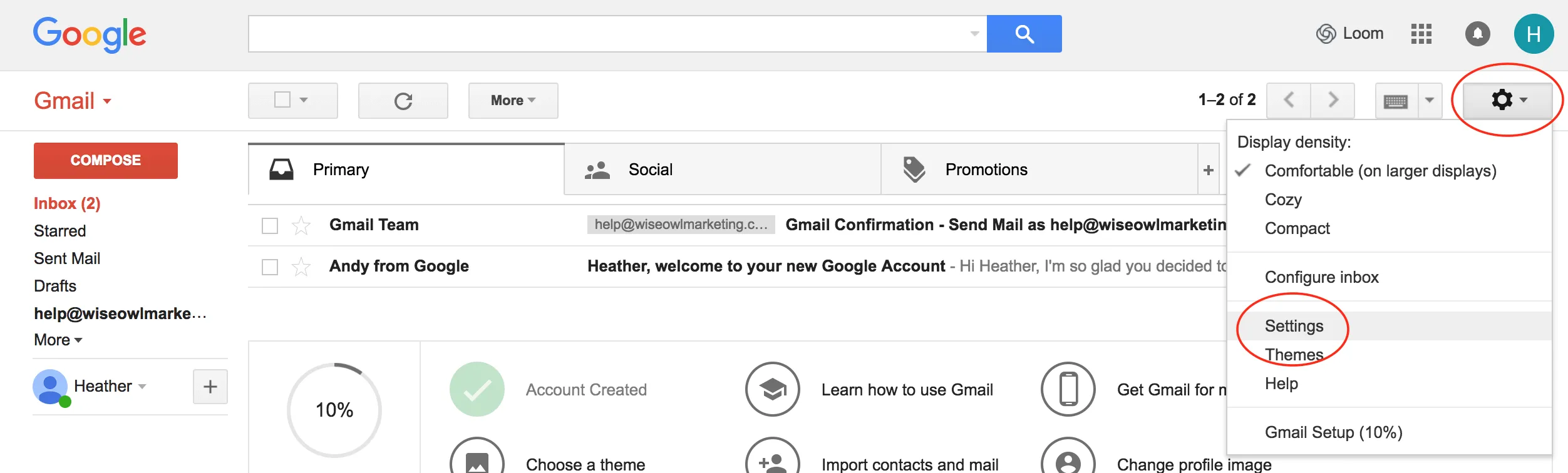
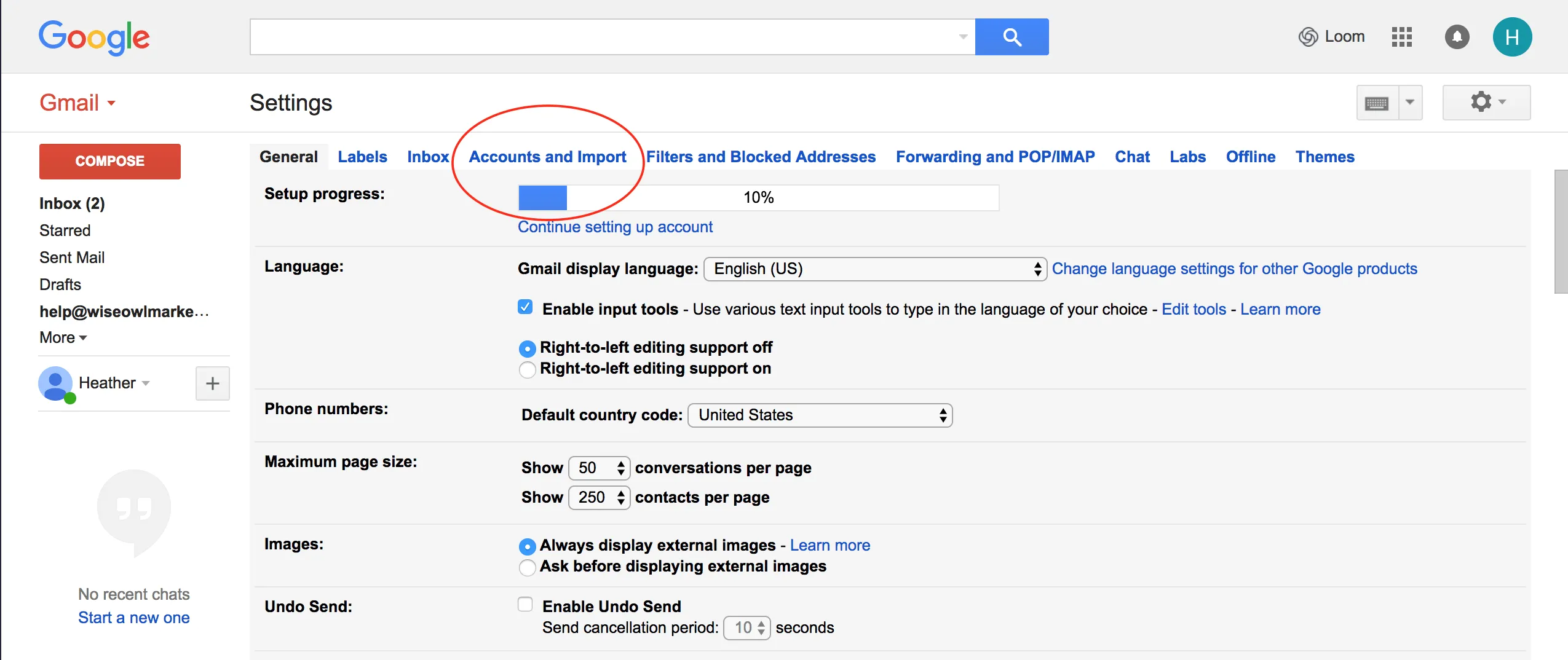
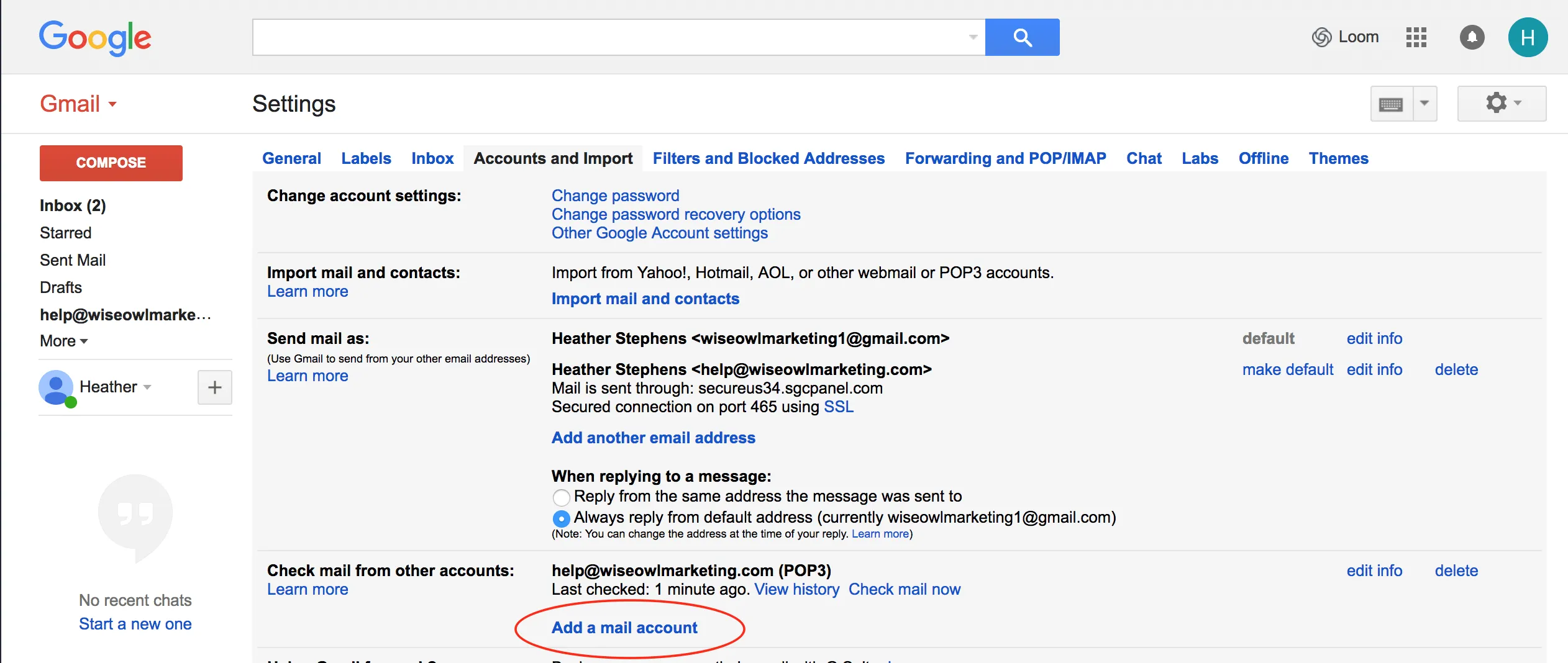
In Gmail, click the gear in the top right and open See all settings. Go to the Accounts and Import tab, find Check mail from other accounts, and click Add a mail account.
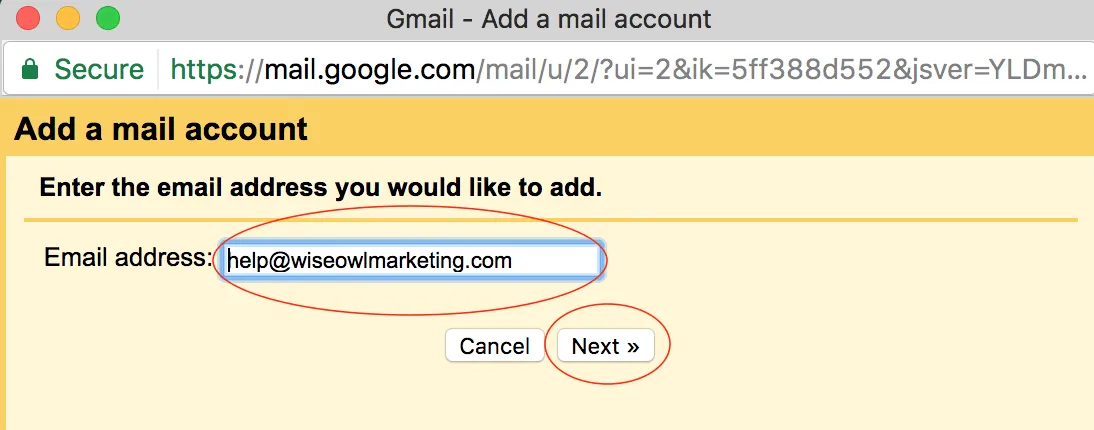
Enter your domain email address and click Next. Choose to import messages from the other account, then fill in the username, password, incoming server, and port your host gave you. I label incoming messages so I can tell at a glance which inbox something arrived in, and I'd recommend you do the same.
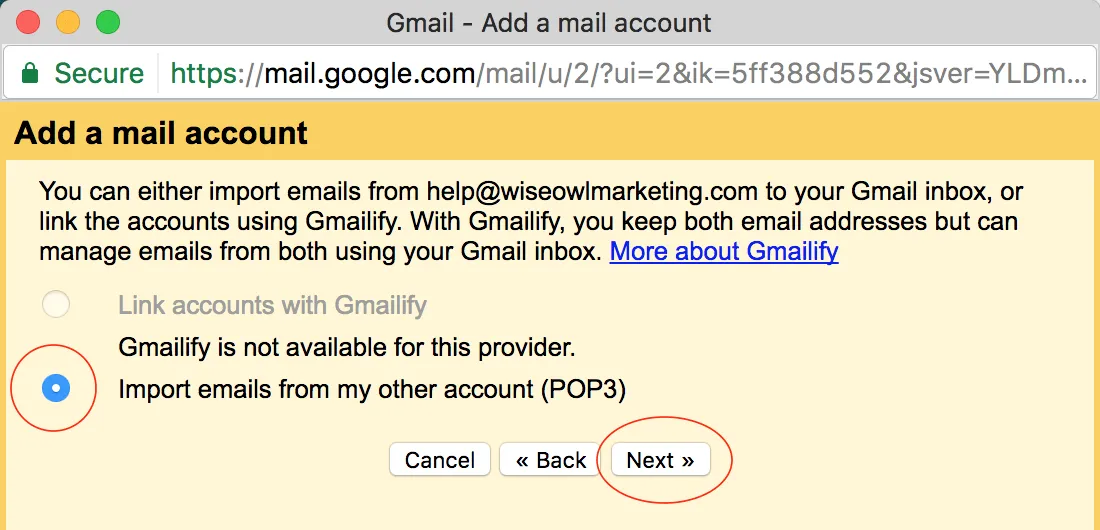
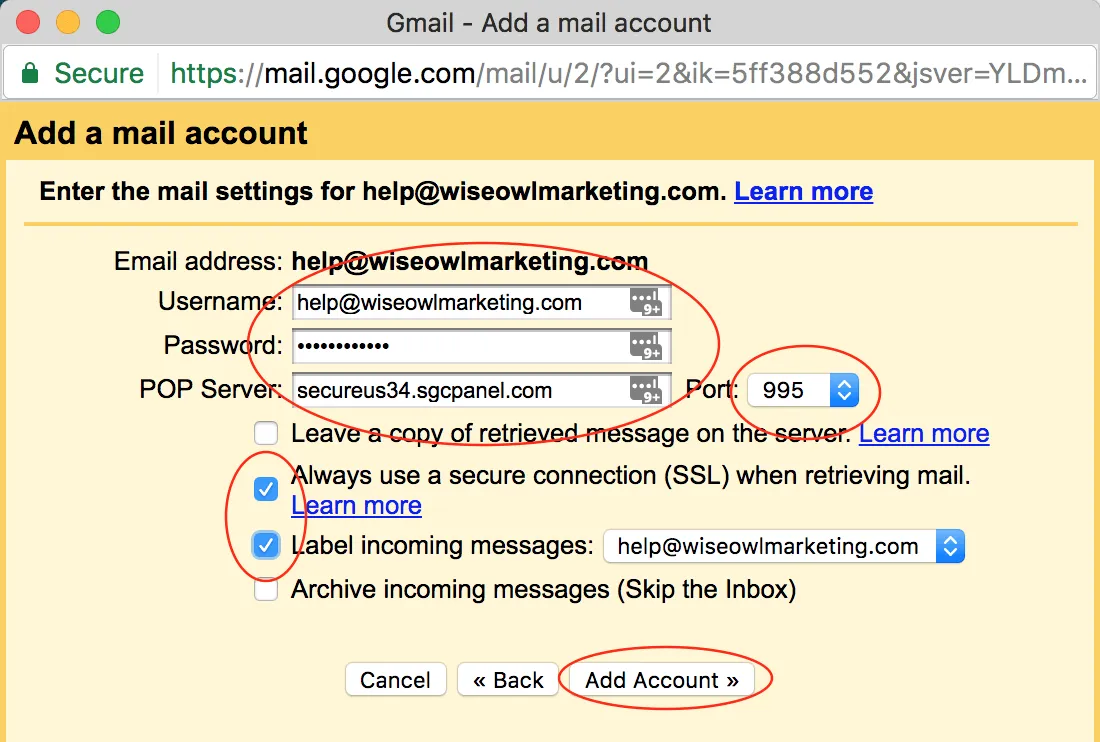
One thing worth knowing: this method uses POP, which means Gmail pulls a copy of each message in rather than staying in constant sync with the server. For most coaches, that's exactly what you want, one tidy copy of everything in Gmail. If you need the same mailbox open and syncing live across several devices at once, that's IMAP, and your host's help docs will walk you through it.
Step three: send from that address too
This is the step most people miss, and it's why a reply sometimes goes out from a plain Gmail address instead of your business one. Let's make sure yours always sends from the right place.
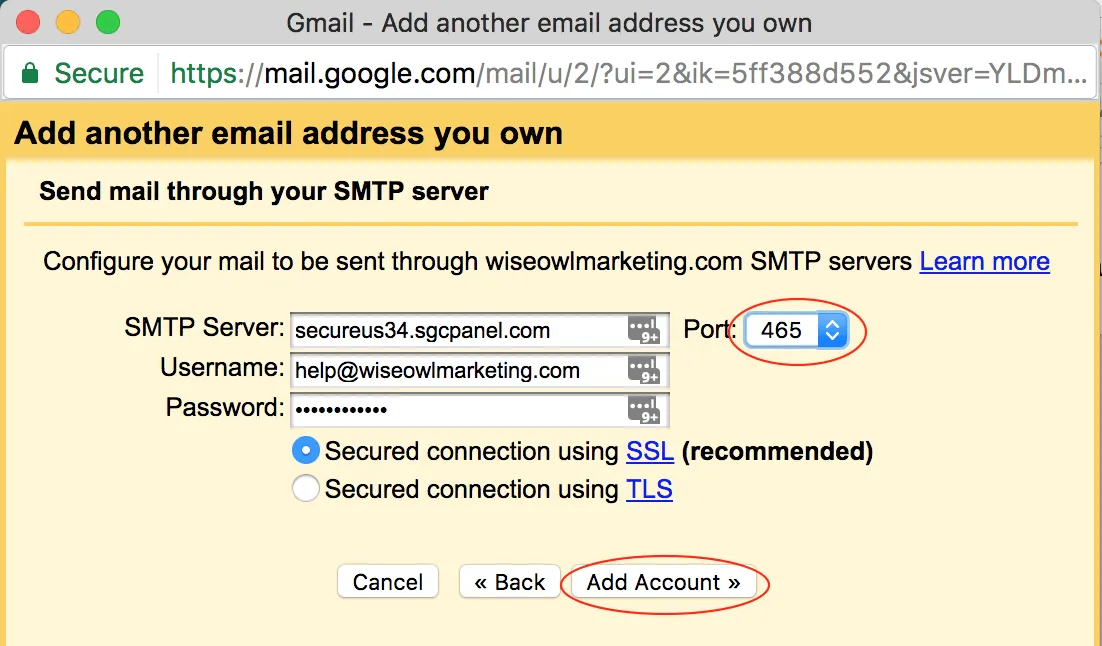
Gmail will ask whether you also want to send mail as your domain address. Say yes. Enter your name, leave "treat as an alias" checked, and click Next. Now enter the outgoing server details, username, password, and port, use the recommended security setting, and click Add Account.
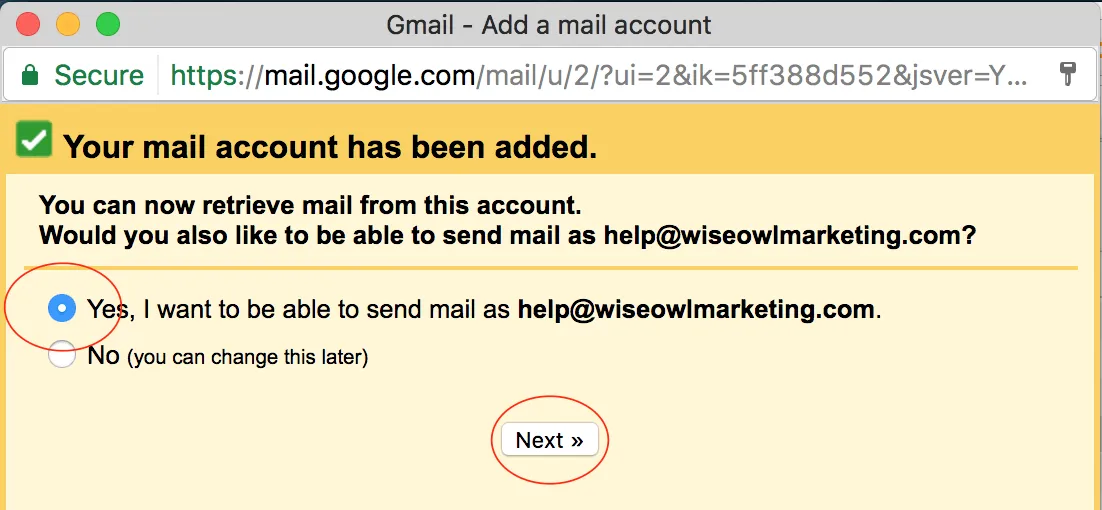
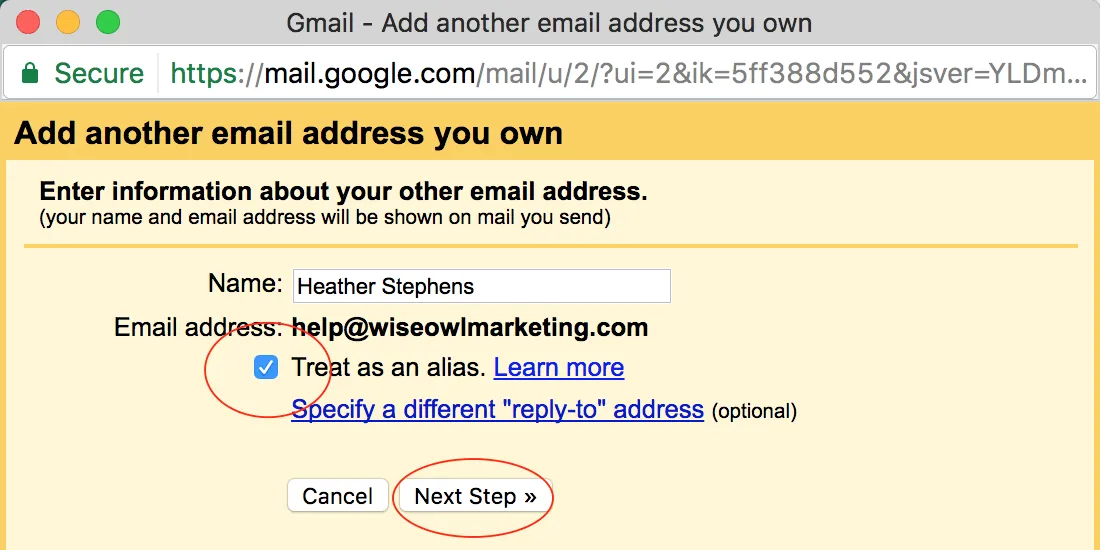
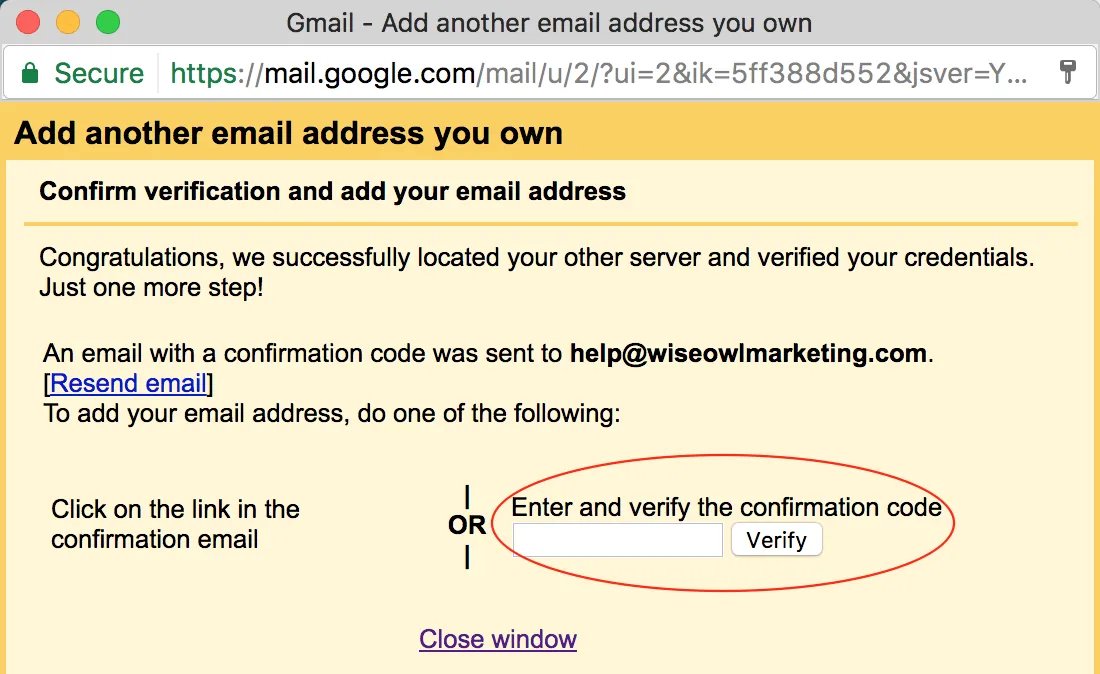
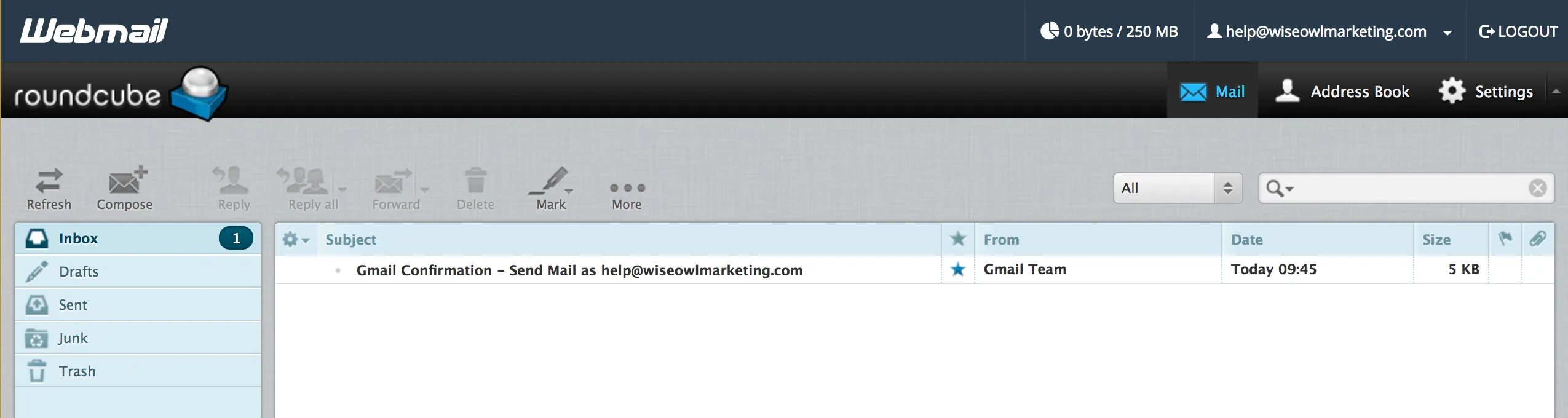
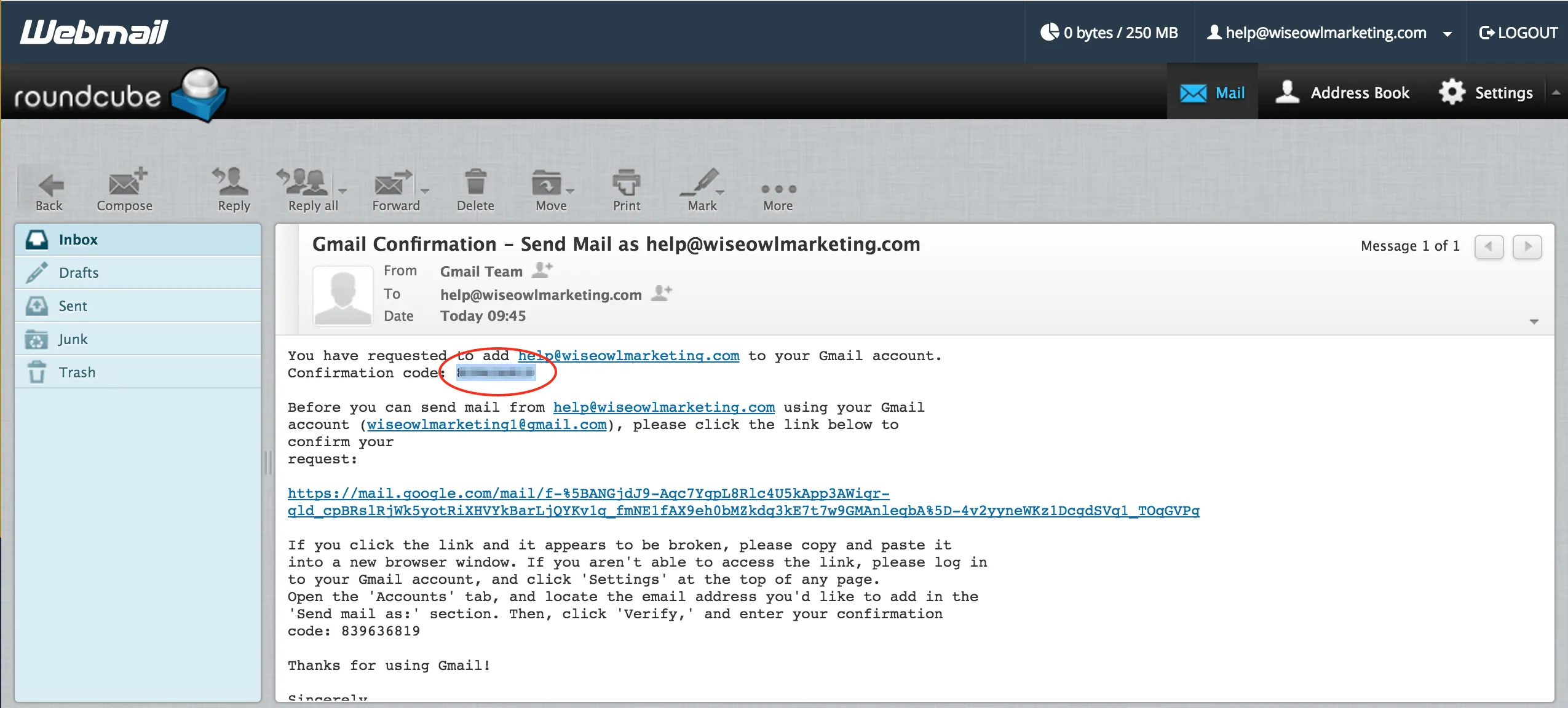
Gmail sends a verification code to that mailbox. Leave the tab open, hop over to your webmail, find the message, copy the code, come back, paste it, and click Verify.
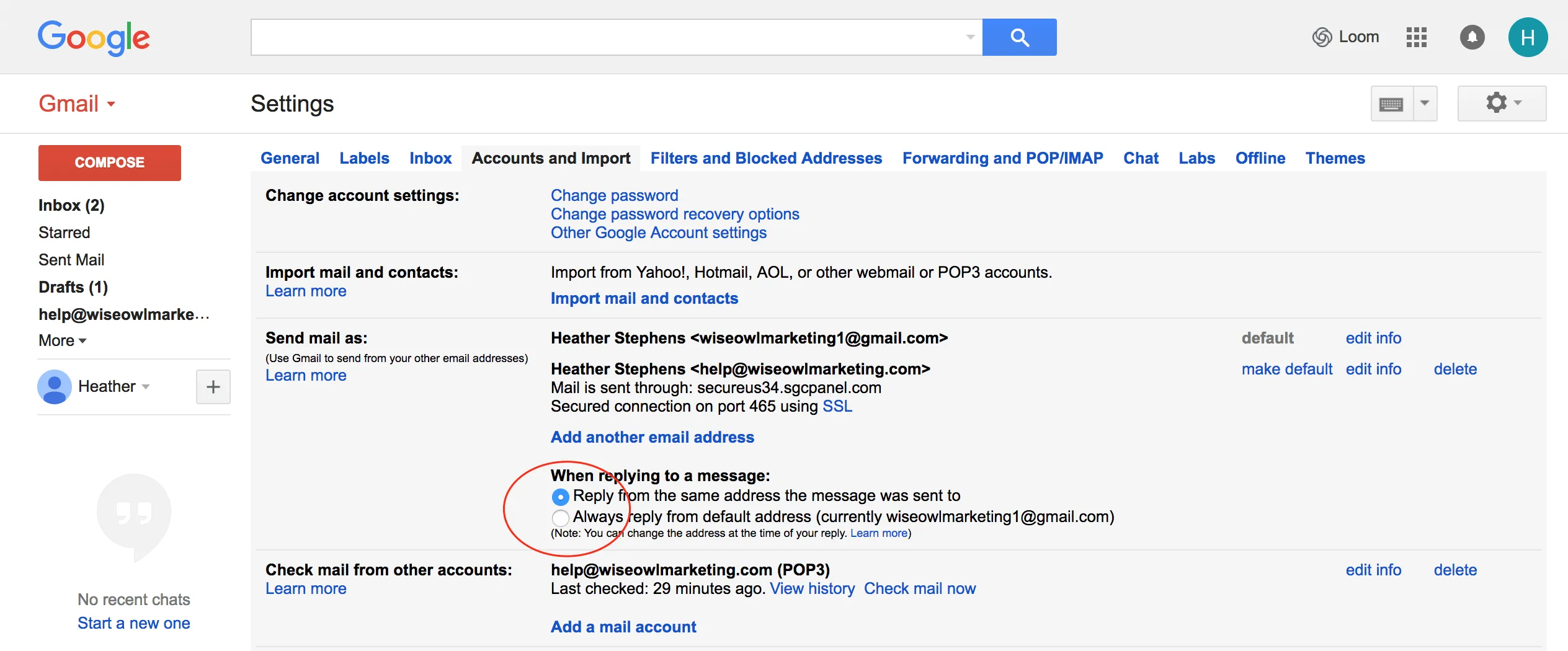
One last thing. Back in Gmail settings, turn on Reply from the same address the message was sent to. Otherwise you'll answer a client from the wrong address at some point, probably at the worst possible moment.
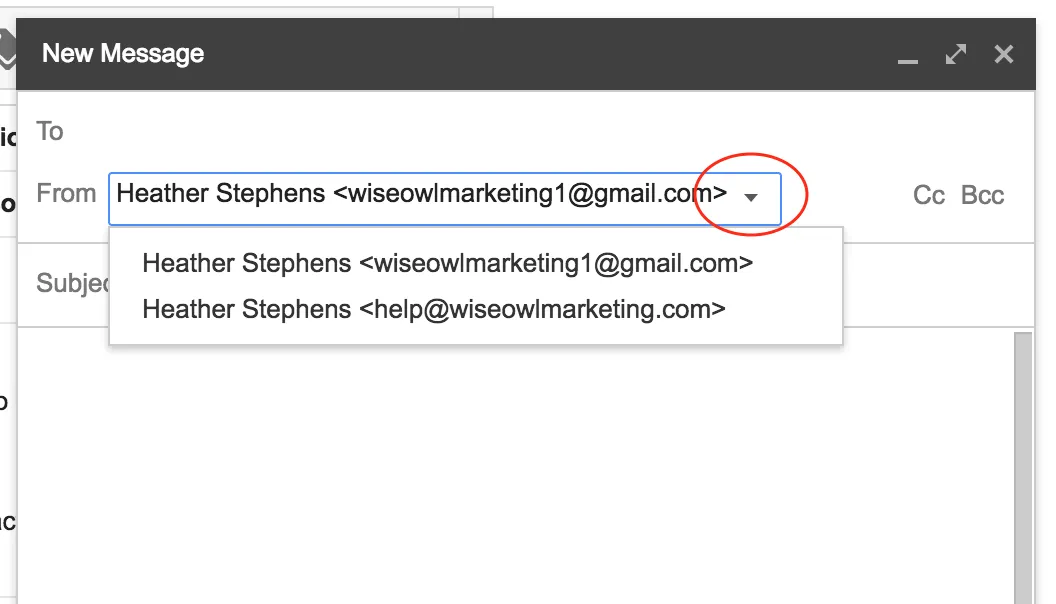
Now when you compose, there's a small dropdown next to the From field where you pick which address to send from. You can add up to five accounts this way.
That's it
Everything arrives in one place, you can answer from the right address, and you've got one fewer login to remember. One inbox, a little more calm.
One inbox is the first half of this. Keeping it calm is the second, and that comes down to a few labels, filters that do the sorting before you ever look, and knowing the search terms that find anything in seconds. That is what I put in Inbox Peace, my free Gmail organization guide, along with four short routines to run weekly, monthly, quarterly, and once a year.
Frequently asked questions
Can I use Gmail with my own domain for free?
Yes. If you already have a domain email through your web host, you can bring it into your existing free Gmail account using the steps above, at no extra cost. If you'd rather Google host the mailbox itself, with Gmail, Drive, and Docs all at your domain, that's Google Workspace, which is a paid plan.
Why do my emails still send from my Gmail address?
You've imported your mail but haven't set up "Send mail as" yet. Turn it on in Gmail settings under Accounts and Import, then switch on "Reply from the same address the message was sent to," so your replies always go out from your business address.
How many email addresses can I add to Gmail?
Up to five. That's plenty for most coaches who run a couple of addresses, like hello@ and support@, out of one inbox.
Does Gmail sync my domain email or just copy it?
This setup uses POP, so Gmail pulls a copy of your messages in. If you need live syncing across several devices at once, use IMAP instead, following your host's instructions.
Whenever you're ready, here's how I can help
Start free and go at your own pace. No pressure, ever.
- Free: Keep reading the blog and subscribe on YouTube. I share everything I know.
- DIY: Get the PeacefulBiz app to organize, plan, create, and simplify your marketing.
- Guided: Join the Peaceful Marketing Lab, and let's build together.
- Direct: Book a strategy call for 1:1 help, a custom website, or to decide which program is right for you.
Want the whole framework?
The PEACE Blueprint Guide walks you through all five pillars, with planner pages to build your own peaceful marketing system.
Get the free guide

Heather C. Stephens
27+ years in marketing and 11 helping coaches and service providers get found online without burning out. Founder of Wise Owl Marketing and creator of PeacefulBiz and the PEACE Blueprint.
More about Heather →


Get peaceful marketing ideas delivered to your inbox each week.
One practical idea at a time, written like a note from a friend who happens to know marketing. Read it and try it that afternoon.