
How to Force a Copy of Your Google Doc, Sheet, or Slide: A Smart Trick for Coaches
By, Heather Stephens

2 Easy Ways to Force a Copy of a Google Doc: How to Make Users Make a Copy
Want to share your Google files while keeping your original content safe? Here’s a handy trick that will force users to make a copy of your document before they can edit it. In fact, I’ll show you 2 quick and easy ways to force a copy via Google Docs, Sheets, Slides, and Drawings!
Discover What’s Holding You Back in Your Marketing
Before we dive into today’s strategies, it helps to know where YOU naturally thrive in marketing, and where you might be overcomplicating things.
Take the Peaceful Marketing Assessment
This free 5-minute assessment reveals your unique marketing profile and shows you exactly where to focus your marketing efforts based on your strengths, your business stage, and your capacity.
You’ll discover:
- Your natural marketing strengths (so you can lean into them)
- Where you’re likely overcomplicating things
- The ONE area to focus on next for the biggest impact
- A personalized action plan based on your results
Quick Answer: How to Force a Copy of a Google Doc
Method 1 (Force Copy):
Change the end of your Google Doc URL from /edit to /copy
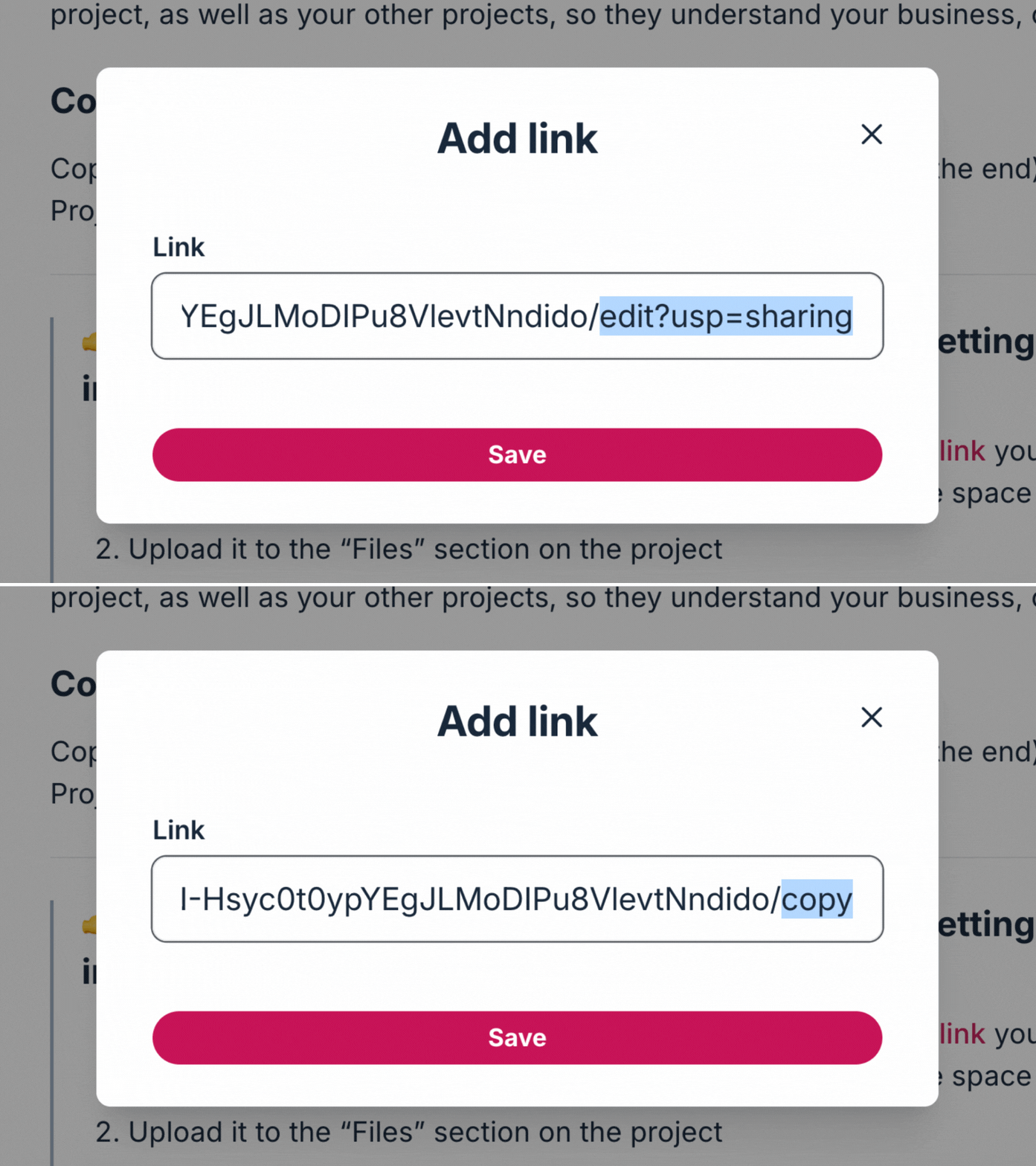
Method 2 (Template Preview):
Change /edit to /template/preview

That’s it! Keep reading for step-by-step instructions, screenshots, and (for coaches) how to turn this trick into a lead-generating system.
Table of Contents
Are You Sharing Templates as Part of Your Business?
Before we dive in, let me ask you something: Are you a coach, course creator, or service provider who shares templates, worksheets, or resources with clients?
If so, stick with me, because this post has some extra strategic goodness for you at the end.
Here’s the thing. The “force copy” trick is useful for anyone who needs to share Google files. Teachers use it. Students use it. Project managers use it. And the technical instructions below will work for all of you.
But if you’re using Google Docs to share things like:
- Lead magnets (checklists, templates, guides)
- Client workbooks or onboarding materials
- Course resources or program worksheets
- Digital products you’re selling or giving away
…then you’re not just sharing a file. You’re building a marketing asset. And there’s a smarter way to think about this that most coaches miss entirely.
I’ll cover the tech first (it’s simple, I promise). Then, if you’re in that “using templates to grow your business” camp, scroll down to the “For Coaches: The Bigger Picture” section where I’ll show you how to make this trick actually work for your business, not just your Google Drive.
Teachers and students, the technical content is all yours! Coaches and creators, keep reading for the strategy.
Let’s start with the basics.
Why Force a Copy of a Google Doc?
As a coach or service provider, you might want to share templates, worksheets, or presentations with your clients. But here’s the challenge – users can edit your original document if you simply share the link. Or, if you lock the document so they can’t edit it, you’ll get many requests from people asking you to give them access to the document.
By using the force copy method, each recipient will automatically need to make their own copy in their Google Drive. This technique works with any Google file:
- Google Docs (for worksheets and templates)
- Google Sheets (for spreadsheets and trackers)
- Google Slides (for presentations)
- Google Drawing (for graphics)
Method 1: How to Create a Force Copy Link
This is the most common way people will force users to make a copy of their google doc. Here’s the step-by-step method to share your content safely:
- Open your Google document, sheet, or slide in your Google Drive editor
- Click the “Share” button in the top right
- In the sharing menu, select “Anyone with the link”
- Copy the URL from your browser
- In the URL, find “/edit” at the end
- Replace “/edit” with “/copy” (don’t use the quotation marks)
- Share this modified link with your users
When someone clicks your link, they’ll be prompted to make a copy of the document. The new copy will save to their Google Drive automatically.
Here’s an Example of a Force a Copy Link:
Please see the bold sections at the end of the link for an example of the edited code.
Original Link: https://docs.google.com/spreadsheets/d/1SrCaDwz-kuaZW_Vhw3n_N2Vhsjq1BmaCOlDxpSibflo/edit?gid=0#gid=0
New Force a Copy Link: https://docs.google.com/spreadsheets/d/1SrCaDwz-kuaZW_Vhw3n_N2Vhsjq1BmaCOlDxpSibflo/copy
Method 2: How to Create a Template Preview Link
Want to give your users a chance to preview before they copy? Here’s a smart trick that’s more user-friendly than forcing an immediate copy.
Why Use Template Preview?
When you share a force copy link, users must make a copy to see the document content. This can lead to:
- Unwanted files cluttering their Google Drive
- Frustration if the content isn’t what they expected
- Extra time spent cleaning up unnecessary copies
The Template Preview Method
Instead of replacing “/edit” with “/copy” in your URL, use “/template/preview”. Doing this will show users a preview of the document. If they decide they want to make a copy of the file to their Google Drive, they can click the “Use Template” button in the upper right-hand corner.
Here’s how to make a template preview link:
- Open your Google document, sheet, or slide
- Click the “Share” button
- Set visibility to “Anyone with the link”
- Copy and paste the URL from your browser wherever you plan to share it
- Replace “/edit” with “/template/preview” (don’t use the quotation marks)
- Share this modified link with your users
When someone clicks your link, they can:
- View the complete document first
- Decide if it’s useful for their needs
- Click the “Use Template” button in the top right corner if they want to make a copy
- Exit without cluttering their Google account if it’s not what they need
Pro Tip for Content Creators
Consider using template preview links when:
- Sharing paid templates or worksheets
- Distributing course materials
- Offering free resources
- Marketing your digital products
This method respects your users’ time and Google Drive space while still protecting your original content.
Here’s An Example of a Template Preview Link:
Please see the bold sections at the end of the link for an example of the edited code.
Original Link: https://docs.google.com/spreadsheets/d/1SrCaDwz-kuaZW_Vhw3n_N2Vhsjq1BmaCOlDxpSibflo/edit?gid=0#gid=0
New Template Preview Link: https://docs.google.com/spreadsheets/d/1SrCaDwz-kuaZW_Vhw3n_N2Vhsjq1BmaCOlDxpSibflo/template/preview
Smart Ways Coaches Use Force Copy
Templates and Worksheets
Create a template once, then distribute it to multiple clients. Each user gets their own version to edit, while your original content stays unchanged.
Client Workbooks
Share comprehensive workbooks where clients can comment, edit, and track their progress without affecting your master document.
Course Materials
If you’re an educator or course creator, use this trick to share materials with students. Each student gets their own copy to work on assignments. (Thinking about creating a course? Here’s my guide to building an online course website.)
Group Programs
Share spreadsheets or presentation slides with your group program participants. They can collaborate within their own copy while preserving your original file.
Pro Tips for Better Document Sharing
- Test your force copy link in an incognito window before sending it to clients
- Add clear instructions at the top of your document about making edits
- Use consistent file naming in your Google Drive to track originals. (I.e., “File Name – Shared Google Template”)
- Consider creating a template folder to store all your master documents
- Save time by turning frequently used documents into Google templates
Advanced Features and Permissions
When sharing documents that require users to make a copy, you can also:
- Set viewing permissions for specific email addresses
- Allow or restrict downloading options
- Enable or disable commenting features
- Control whether users can share the document further
Technical Details for Power Users
Want to ensure your content is properly protected? Here are some additional options:
- Use Google Drive folders to organize master templates
- Create different permission levels for team members vs. clients
- Preview your document as a different user to check settings
- Track document distribution through unique URLs (I sometimes like to set up a URL redirect in WordPress to my Google Doc Force a Copy Link so I can track clicks.)
- Set up email notifications for important file activities
For Coaches: The Bigger Picture (Don’t Skip This)
Okay, now let’s talk about what most people miss.
If you’re a coach, course creator, or service provider sharing Google Doc templates, you’re not just sharing a file. You’re essentially creating a lead magnet. And here’s the thing about lead magnets: they only work if there’s a system behind them.
I’ve seen so many coaches create beautiful templates, client workbooks, planning spreadsheets, onboarding checklists, and then just… share the link. On social media. In a Facebook group. On their website, with no opt-in required.
The template gets downloaded. The coach gets… nothing. No email address. No relationship. No way to follow up.
That’s not a lead magnet. That’s a gift with no return address.
What Separates Coaches Who Get Clients from Their Content
The coaches who actually turn templates into clients do three things differently:
1. They connect the template to an email opt-in.
Instead of sharing your force copy link directly, put it behind a simple opt-in. Someone enters their email, your email system delivers the link automatically. Now you have permission to continue the conversation.
This doesn’t require fancy tech. A simple landing page and email automation can handle it. (If you’re not sure how to set this up, I walk through the whole process in my post on how to deliver and promote your lead magnet.)
2. They create templates that solve problems people are already searching for.
Here’s a question worth asking: Is your template something your ideal client would actually Google?
A “Client Onboarding Workbook” is nice for existing clients. But a “90-Day Goal Setting Template for New Coaches” might be something people are actively searching for. One serves your current clients. The other attracts new ones.
If you’re stuck on what kind of template would actually attract leads, I’ve got a whole post on lead magnet ideas for coaches that might spark some ideas.
3. They have a follow-up sequence that nurtures toward working together.
The template is the beginning of the relationship, not the end of it. What happens after someone downloads your resource?
The coaches who turn downloads into clients have a welcome sequence, a series of emails that introduces who they are, delivers more value, and eventually invites people to take the next step.
This is where the real magic happens. Your template got their attention. Your emails build the trust. Your offer becomes the obvious next step.
Think Beyond the Tech Trick
I want you to think bigger than just “how do I share this file safely.”
Ask yourself:
- Does this template solve a real problem my ideal client has?
- Am I capturing the email address of people who download it?
- Do I have a plan for what happens next?
If the answer to any of those is “no” or “I’m not sure,” that’s okay. You don’t have to have it all figured out today. But now you know there’s more to build.
The force copy trick is the first step. The system behind it is what actually gets you clients.
Common Questions About Force Copy
Will my original document stay safe when people make copies?
Absolutely. When someone uses your force copy link, they’re creating a duplicate in their own Google Drive. Your original document stays completely untouched. They can edit, delete, or modify their copy all they want – it won’t affect your master file. This is exactly why the force copy method is so popular for coaches sharing templates.
Can I force a copy of Google Sheets and Google Slides too?
Yes! The force copy method works for all Google Workspace files: Docs, Sheets, Slides, and even Drawings. Just replace /edit with /copy in any Google file URL. This makes it perfect for sharing meal planning spreadsheets, budget templates, presentation decks, or any other resource you create for clients.
Q: What if I update the original?
A: Existing copies won’t update automatically. You’ll need to share the new version.
Q: Can I use a Google Doc as a lead magnet?
A: Absolutely! Many coaches use force copy links to share templates, checklists, and workbooks as lead magnets. The key is capturing email addresses before sharing the link, see the “For Coaches: The Bigger Picture” section above for how to set this up.
What’s the difference between /copy and /template/preview?
The /copy link forces someone to make a copy immediately – they click the link and Google prompts them to save it to their Drive before they can even see the full content. The /template/preview link lets them preview the document first, then click “Use Template” if they want to make a copy. I recommend /template/preview for paid products or substantial resources where people should see what they’re getting first, and /copy for quick lead magnets where you want minimal friction.
Can I track who downloads my Google Doc template?
Not directly through Google, but yes through workarounds. The easiest method: Create a URL redirect in WordPress (or use a link shortener like Bitly) that points to your force copy link. Then you can track clicks in your analytics. For coaching businesses, I recommend putting your force copy link behind an email opt-in so you know exactly who’s downloading AND you can follow up with a nurture sequence.
Do people need a Google account to make a copy?
Yes, people need to be logged into a Google account to make a copy of your document. If they’re not logged in, Google will prompt them to sign in or create a free account. This is actually helpful for coaches because it ensures that people can actually access and edit the template you’re sharing – it won’t just sit unedited in their downloads folder.
Can I use force copy links for paid digital products?
Yes, many coaches do! Take a screenshot of the /template/preview version so customers can see what they’re buying first. Then deliver the link after purchase through your payment platform or email. Just be aware that once someone has the link, they could theoretically share it with others. For higher-priced products, consider using a platform like Thrivecart, Flodesk, Kit, or Gumroad that provides more secure delivery. (Thanks for using my affiliate links)
How do I create a force copy link if my document has multiple pages or sheets?
It works exactly the same way. If your Google Doc has 10 pages or your Spreadsheet has 5 tabs, the force copy link will duplicate everything. The person who makes the copy gets the entire document exactly as you designed it. This is perfect for comprehensive workbooks, multi-week planners, or detailed client resources.
What if I need to update my template – do all the copies update too?
No, existing copies don’t update automatically. When someone makes a copy through your force copy link, they get a snapshot of your document at that moment in time. If you update your master template later, only new copies will include those changes. This is why I recommend creating a “master template” version in your Google Drive that you only edit, and keeping the force copy link pointing to that master.
Can I use a custom domain for my force copy link?
Yes! Create a redirect from your website to your Google Doc force copy link. For example, you might set up yoursite.com/meal-plan to redirect to your long Google Drive URL. This looks more professional in your marketing, it’s easier for people to remember and type, and you can track clicks. I do this for all my template resources so I can see which ones are performing best.
Is there a way to collect email addresses before someone gets my template?
Definitely – and as a coach, you should always do this! Don’t share your force copy link publicly. Instead, create a landing page with an opt-in form where people enter their email address. Then your email platform automatically sends them the force copy link in a welcome email. This way you’re building your list while sharing value. This is exactly what I teach in the “For Coaches: The Bigger Picture” section above.
Final Tips for Success
- Always keep a backup of your original document
- Update your master files regularly
- Use clear file names and descriptions
- Test the sharing settings before sending to clients
- Consider creating a tutorial for first-time users
Remember, forcing a copy of your Google Docs, Sheets, Slides, or Drawing isn’t just about protecting your original content – it’s about providing a better experience for your clients, too!
Whether you’re sharing worksheets, spreadsheets, or presentations, this method ensures each user gets their own editable version while your master document remains unchanged. It’s a simple yet powerful tool in your digital coaching toolkit.
Here are 3 easy ways to get started…
- Get your personalized action plan
Take the Free 3-Minute Peaceful Marketing Assessment
- Get coaching, tools, implementation, and community
Join the Peaceful Marketing Lab
- Put my experience to work in your business
Book a Free Clarity Call to explore ways we can work together to reach your goals





Looking for Something Specific?

Where Should I Send Your Free 2026 Marketing Planning Bundle?
*Your free planner will be delivered to your inbox. Check your spam folder if you don't see it within 15 minutes. Submit a support ticket if you need help. By entering your email address, you agree to receive emails, including marketing tips, offers, and announcements, in accordance with my privacy policy.
